Live Video Production for Windows and macOS HD 4k 2x4K
Vidix — Live Video Mixer Mac and Win
Professional live video switching and recording in one app, built for real production and broadcast work. Vidix is a professional live video switcher built for real production and broadcast work — multi-camera switching and recording in one app, running natively on Windows, Apple Silicon and Intel hardware systems.

Core Capabilities
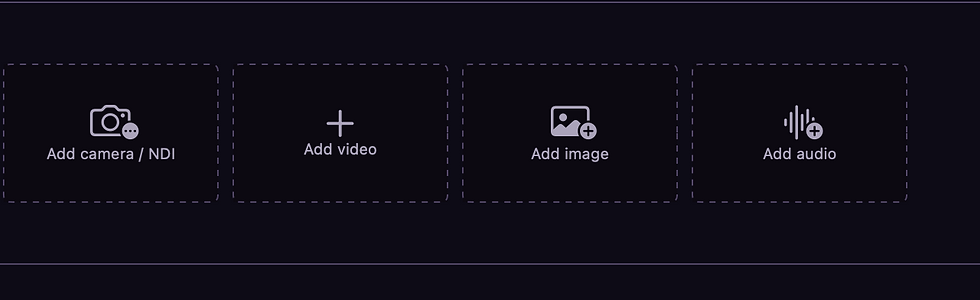
Inputs
Manage complex multi-source setups, ensuring robust performance for demanding 4K production workflows.

Layering and Switching
Utilize Apple M-Series power for instantaneous vision mixing, 32-bit float computation, and intricate multi-view visual overlays.

Streams
Manage local ProRes captures and specialized hardware monitor outputs with absolute mastering mastery.

Native Mac Ecosystem
Switching & Compositing
Classic Preview/Program workflow with instant Cut or smooth crossfade Fade. Up to 5 picture-in-picture overlays — draggable, resizable, croppable, with a "PIP Mix" mode for fast camera-pair switching. Broadcast-grade chroma keying ("Ultrakey"-level: luma/chroma color-space keying, not flat RGB) with spill suppression and light wrap, usable on any PIP or on Program itself. 2 downstream-key (DSK) buses for preview monitors. Scenes: save and instantly recall a full on-air look — source, PIP layout, keying, DSK,music — with its own fade time.

Outputs
Up to 5 independent, individually configurable physical outputs — each can follow Program or be routed directly to any source. A dual-output "2×4K" span mode for wide/multi-display setups. A dedicated multiviewer output mode. Simultaneous NDI (full resolution) and/or OMT broadcast per output, independently switchable.
Recording
ProRes /mp4 recording of Program. Independent ISO recording per camera, in sync with Program.
Audio
Independent Main (live monitor) and Record buses, so what the operator hears and what gets recorded/broadcast can differ deliberately. Per-input mute and "exclude from Main output," PIP audio automatically included, live VU metering.
Control & Integration
Full MIDI control-surface mapping via a Learn-based binding UI. OSC control for external automation. Built-in Sync Test tooling to verify output timing across multiple displays. Pairs automatically with Shadix (below) over the local network for camera shading and tally — no addresses to type in. Drives camera tally lights via NDI, reflecting live Program/Preview state. Full show/project save-and-recall.
Fully compatible with Shadix

Vidix Product Details
Mac Platform Support
Runs natively on Windows, Apple Silicon & Intel; macOS 15+ needed
Transmission Formats
Supports HD, 4K, and exclusive 2×4K dual-display spanning
Data Capture
Dual-engine ISO and master recording
Broadcast Engine
Precision 32-bit float architecture for live signals
External Controls
OSC connectivity for Stream Deck & Bitfocus Companion setups

Join the Program
Calling all broadcast engineers and live stream creators to integrate Vidix into your workflow and test our professional macOS toolset.
Steps to Hide the Privacy Dot on External Displays
1. Run the Command in macOS Recovery
-
Shut down your Mac completely.
-
Start up from macOS Recovery (hold the power button on Apple Silicon Macs, or press Command + R on Intel Macs).
-
From the top menu bar, go to Utilities and open Terminal.
-
Type or paste this exact command:
-
bash
system-override suppress-sw-camera-indication-on-external-displays=on
-
Press Return, then quit Terminal.
-
Click the Apple menu and choose Restart.
2. Turn Off the Setting in System Settings
-
Once your Mac boots back up, open System Settings.
-
Click Privacy & Security in the sidebar.
-
Click Microphone (and/or Camera).
-
Turn off Privacy Indicators.
This hides the indicator dots on external screens during full-screen use without affecting your Mac's built-in display.